
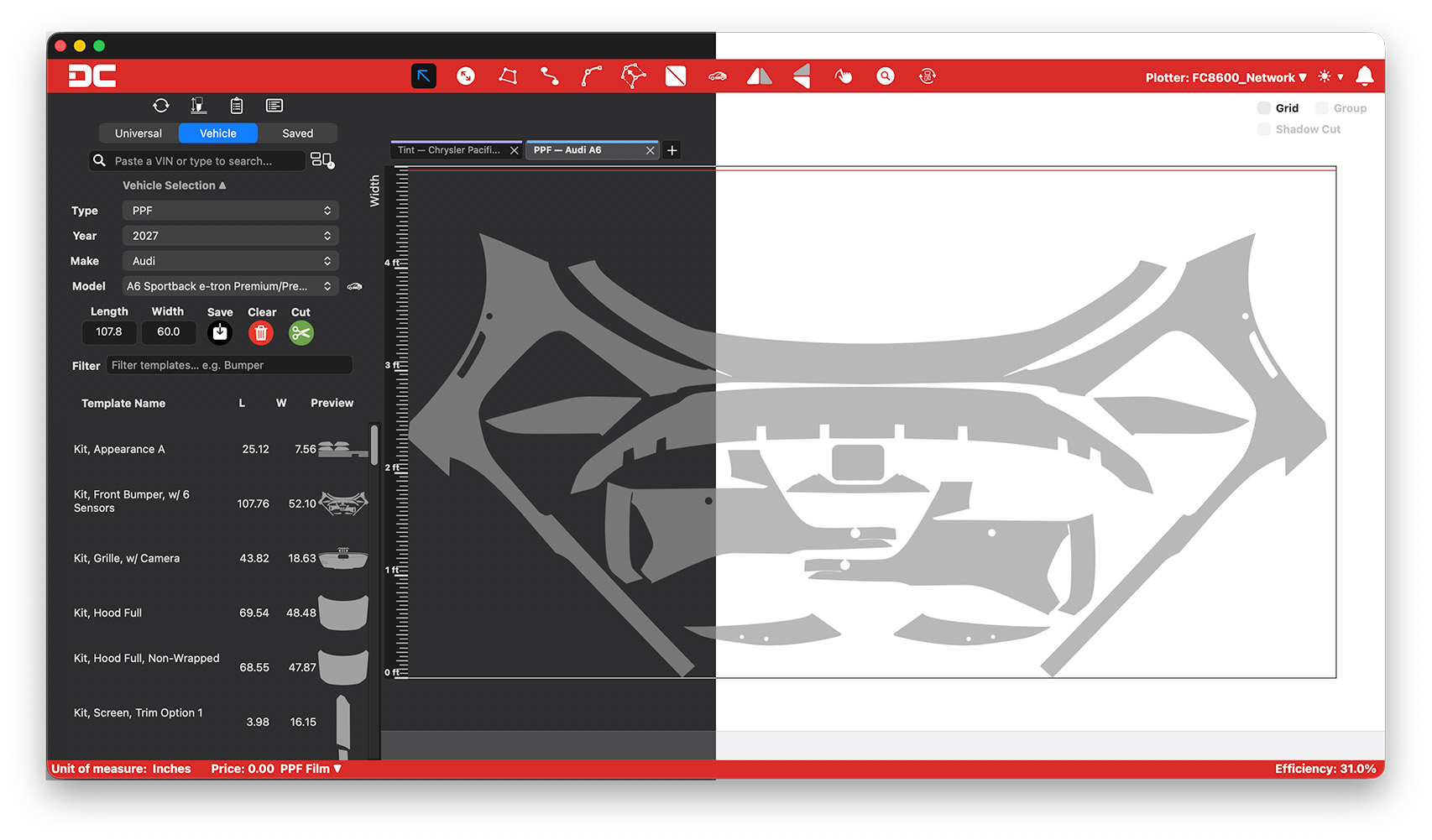
If you’ve spent a late shift squinting at a bright white canvas, digging through vehicle after vehicle to find the one you need, or nudging the same stubborn cutout into place one more time, DigiCut 3.0 was built with exactly that in mind. Dark Mode is finally here, and that’s really just the start. We also reworked how you move between vehicles, how the software nests your patterns, and how much manual cleanup stands between you and a bay-ready template.
Here’s a full breakdown of what’s new, plus one feature we’re pulling in early from the 3.1 release because it’s too useful to make you wait for.
Dark Mode (Finally)
Choose Light, Dark, or System mode and let DigiCut match your shop instead of fighting it. It’s a genuinely welcome change if you’re working long days under shop lighting or just prefer an easier canvas on the eyes. Your eyes can clock out when the shop lights do.
Work Multiple Vehicles at Once with Tabs
DigiCut 3.0 introduces a full tabbed workspace. You can now have several vehicles or film types open at the same time, reorder tabs to match your workflow, jump between them with keyboard shortcuts, and pick up right where you left off with restored saved sessions. If your bay juggles more than one job at a time, or you like to prep the next vehicle while a plot is running, this alone is worth the update.
Faster Vehicle Search
Finding the right template just got quicker. The vehicle picker has been rebuilt with a smoother search experience, VIN match support, a list of recent vehicles, better popovers, and easier workflows for opening a new tab straight from search. Less digging, more cutting.
Help and Notes, Built Right In
Two small but handy additions round out the everyday workflow. New in-app help text and expanded software guide entries mean you don’t have to leave DigiCut to figure out what a tool does. It’s contextual, so the explanation shows up right next to the tool itself. And Notes now open in their own standalone window with grouped content, photo previews, saved placement, and helpful alerts when notes are attached to a template.
More Editing Power (and a Smoother Canvas)
This is the update’s biggest under-the-hood investment. Bend, Curve, Zoom, Offset, Resize, Shape, Mirror, PCC, and Separate all got new or improved functionality, along with cleaner inline controls so you’re not hunting through menus mid-edit. PCC presets also now display their units, so there’s no more guessing whether you’re looking at inches or millimeters before you commit to a cut.
Two navigation additions make working the canvas itself easier too: a Magnifier Loupe you can hold to zoom in on tight edits and tiny details, and Spacebar Hand Pan, which lets you hold the spacebar to pan around the canvas more naturally whenever you’ve got room to move. Check out our Shortcuts page.
Smarter Nesting, Cleaner Cutouts
DigiCut’s nesting engine got noticeably better at using the space you actually have. Smart Placement now handles holes, curves, skinny patterns, and awkward under-curve areas more efficiently, which means less wasted film and less manual nudging to make a layout fit. That same attention carried over to cutouts and separating: selection, previews, plotting, and overall reliability all improved for nested cutouts and templates with holes.
Bonus, Straight from 3.1: Group Templates
We couldn’t talk about DigiCut’s newest tools without mentioning one that shipped just after 3.0: Group Templates. It lets you group multiple templates into a single working unit that selects, moves, rotates, and places together, so there’s no more clicking and dragging pieces one at a time when they belong together as a kit.
Grouping is built right into the workflow you already know: use the Group checkbox beside Grid and Shadow Cut, right-click on the canvas, or hit Cmd/Ctrl+G. Need to make an edit to just one piece? Ungroup with the same controls and you’re back to working on individual templates.
It also plays well with the rest of the toolkit. Smart Placement treats a manual group as a single unit instead of scattering its pieces, and rotated groups stay rigid through rotate, flip, and mouse-wheel adjustments. If you work with full-body kits or multi-piece patterns regularly, this is the kind of change that saves real time on every single job.
Smoother Setup and Plotter Management
New installs and new users get a refreshed onboarding flow covering language selection, account or trial status, EULA, and plotter setup. It’s a much easier starting point if you’re setting up DigiCut on a new station or training a new installer.
On the plotter side: saved plotters, calibration tracking, quicker switching between machines, per-tab defaults by film type, clearer server status checks, and safer printer target handling all made it into this release. If your bay runs more than one plotter, these changes are built for you.
Reliability and Polish
DigiCut now handles a dropped connection or an offline startup much more gracefully, including clearer cut-button feedback so you always know where you stand mid-session. On top of that, you’ll notice cleaner icons, improved banners and footers, better text truncation, refined utility windows, and a long list of Windows and macOS fit-and-finish fixes throughout.
See It In Action
Want to watch these tools in motion instead of just reading about them? Check out our walkthrough video covering the DigiCut 3.0 update, or head over to the DigiCut YouTube channel for the full rundown of both the 3.0 and 3.1 releases.
Update Whenever You’re Ready
DigiCut 3.0 is available now for both Windows and macOS. Open the app to grab the update, or head to digicut.com/downloads if you’re setting up a new station. If you run into anything unexpected, our support team is always ready to help.
Got a favorite new tool from this release? Drop it in the DigiCut Discord. We’d love to hear what’s making the biggest difference in your bay.