
A plotter is one of the biggest equipment purchases a tint or PPF shop makes. Pattern software is a monthly commitment on top of it. The two have to work together every single day, and they don’t always.
Not every pattern software works cleanly with every plotter. Some platforms support a wide range of brands. Others recommend or require one specific brand. And even when a plotter is technically supported, how well it runs can depend on the model, the connection, and how it’s set up.
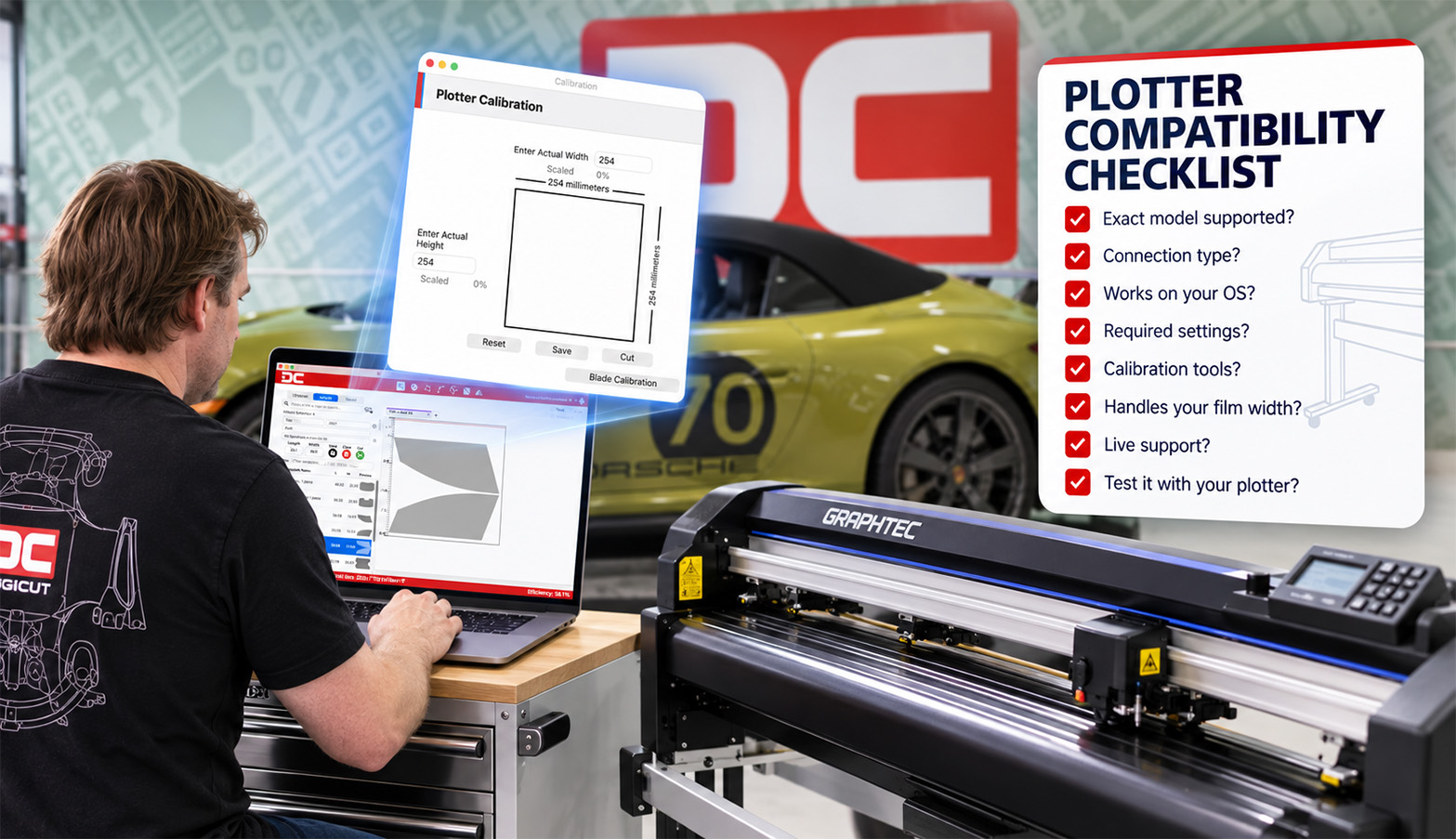
Whatever software you end up choosing, run it through this checklist first. It takes a phone call or two and can save you from buying the wrong hardware or paying for software your plotter can’t run.
The checklist
Ask every vendor on your shortlist these questions, and get the answers before you subscribe.
- Is my exact model supported? Check the model, not just the brand. Manufacturers make many plotters, and one supported model doesn’t guarantee the rest of the lineup works. Look for a published list of supported and unsupported models.
- How is it supported? Some plotters work the moment you plug them in. Others need extra setup from the vendor’s support team before they’ll cut. Know which one you’re getting.
- How does it connect? Plotters connect by USB, serial, or network, and some models only connect one way. Confirm the connection your plotter uses works with the software and with your computer.
- Does it work on my operating system? If you run a Mac, confirm your plotter is supported on Mac specifically. Don’t assume a Windows answer carries over.
- Are there required plotter settings? Some software needs specific firmware or settings configured on the plotter. Ask whether there’s a setup guide, and who walks you through it if you get stuck.
- Are calibration tools built in? Every plotter drifts over time. Built-in calibration keeps cuts true to size without guesswork.
- Does it fit the film I run? Your plotter’s usable cutting width needs to handle the widest film you work with, and the software should nest patterns within that width.
- Does it lock me into one plotter brand? If a platform recommends or requires a specific brand and you already own something else, you may be looking at a hardware purchase on top of the subscription.
- Who helps when it won’t connect? Find out whether there’s live phone support, and whether the team has real experience with your plotter brand.
- Can I test it with my own plotter? A free trial on your actual hardware is the only true compatibility test. Cut a full kit, including a long PPF piece, and check the fit.
Haven’t bought a plotter yet? Choose in the right order
If you’re setting up a new shop or replacing old equipment, choose your software first, then pick a plotter from its supported list. It’s a lot easier than trying to make software fit a plotter you’ve already paid for.
While you’re at it, ask the software’s support team which plotter models they know best. Deep hands-on experience with a brand usually means faster answers when something needs attention.
Already own a plotter? Protect that investment
If your plotter is already in the shop, it should be the first thing you confirm with any vendor, before you put in payment details. A great pattern library won’t do you much good if it can’t reach your cutter.
And don’t forget the computer driving it. The software has to run smoothly on your machine for the whole setup to work.
Signs your setup has a compatibility problem
If you’re already cutting and something feels off, these are common signs the plotter and software aren’t working well together:
- The connection drops mid-cut or the plotter isn’t recognized.
- Jobs stall, send partially, or have to be restarted.
- Long pieces drift or skew from where they started.
- Patterns come out consistently a little too small or too large.
That last one is usually a calibration issue rather than true incompatibility, and it’s often an easy fix. We walk through it step by step in Why Are My Templates Slightly Too Small or Too Large?
Where DigiCut stands
Here’s how DigiCut answers the checklist. It runs on both Windows and Mac with no dongle, and it supports all major plotter manufacturers, with dedicated expertise in Roland and Graphtec. Built-in setup and calibration tools help keep your cuts true to size.
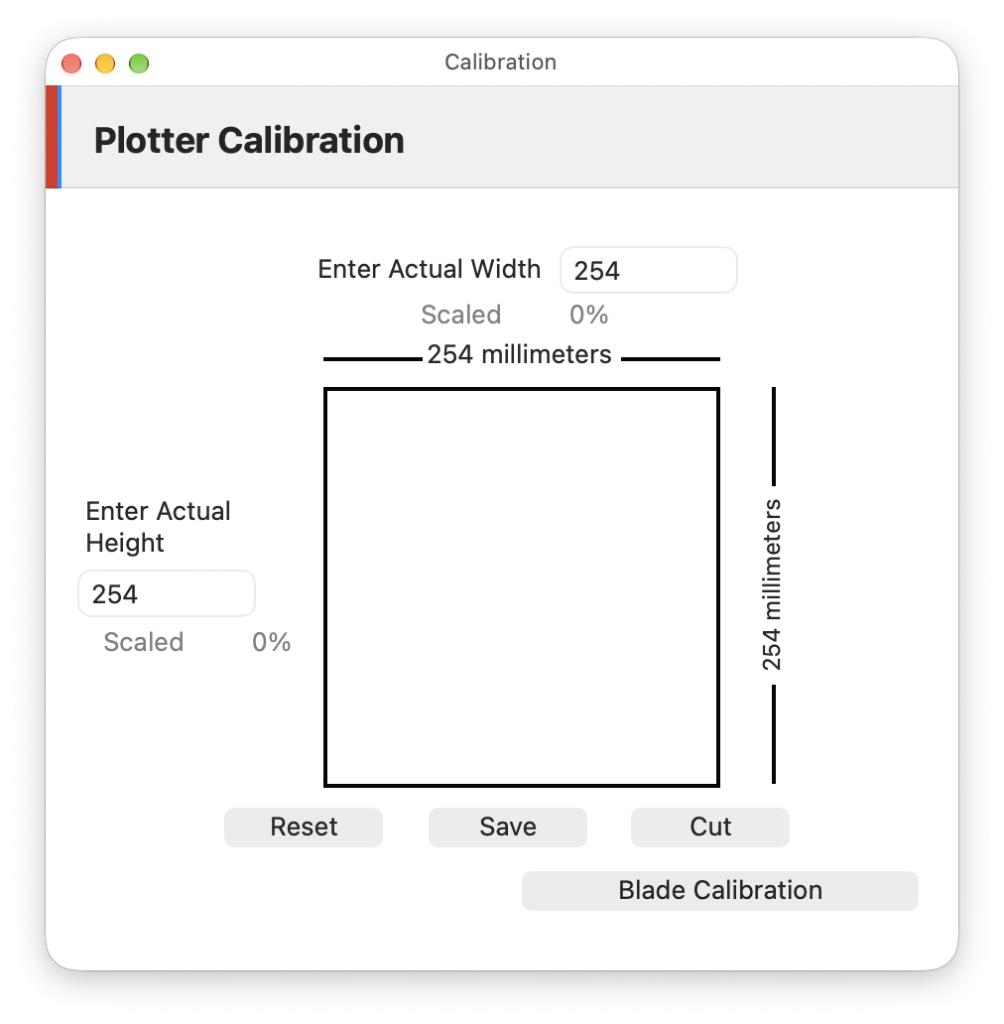
You can search the full list of supported and unsupported plotters by brand and model on the DigiCut System Requirements page. Not sure about your model? Call our bilingual support team at 1-800-452-7311 or visit DigiCut Support, and we’ll confirm it before you install.
Test it on your own plotter
DigiCut’s 30-day free trial gives you full access with no credit card required. Connect your plotter, cut a real job, and see how it runs. Start your free trial.