
Trim and Option filtering, multi-select templates, faster Smart Placement, and steadier connections for window tint and PPF pattern cutting.
Every installer knows this moment. The year, make, and model all match, but the truck in your bay has a 3-piece slider in the back glass, and the kit list is showing you every version of that window. So you scroll, compare, and make your best call.
DigiCut 3.2 is built for that moment. Released Oct. 16, 2026 it adds Trim and Option to Vehicle Selection, so you can narrow a vehicle down to the exact build in front of you and see only the matching window tint and paint protection film (PPF) templates. It also brings multi-select to the template library, faster Smart Placement on large kits, and steadier behavior when a connection drops.
DigiCut 3.2 at a glance
- Trim and Option filtering: narrow Vehicle Selection to the exact build and see only the matching kits.
- Multi-select in the library: select several templates and add them in one step.
- Faster Smart Placement: large kits place faster.
- Steadier connections: if DigiCut can’t reach a server, it switches to another connection instead of hanging.
- Available now: update from the DigiCut downloads page.
Pick the Trim and Option, Get the Matching Kits
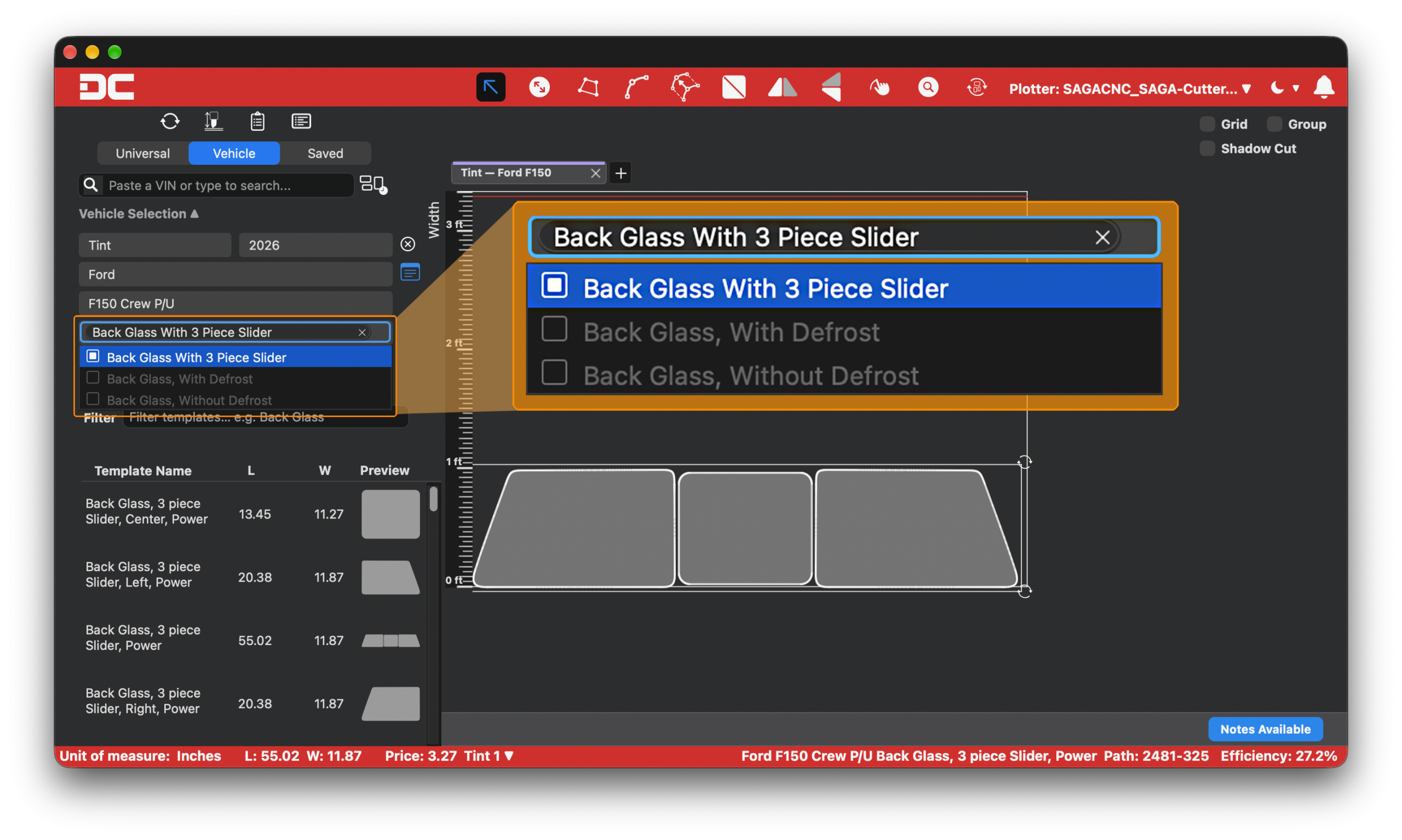
Vehicle Selection now goes two steps further. After you pick a Model, a Trim list appears for vehicles that have trims, followed by Option where it applies. Make your picks, and the template list narrows to the patterns built for that exact build.
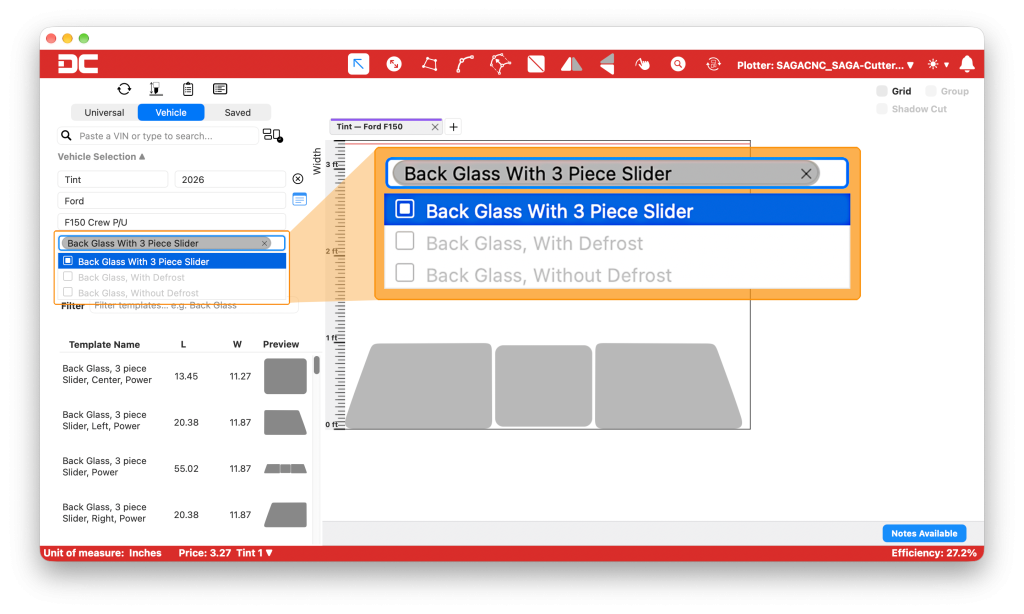
Take the 2026 Ford F-150 Crew Cab. Its back glass comes three ways: with a 3-piece slider, with defrost, or without defrost. Choose the option that matches the truck in front of you, and those are the templates you’ll see.
Variations like that are everywhere in this work. One truck can have more than a dozen windshield part numbers, as we covered in our post on windshield coverage in the DigiCut library.
A few details worth knowing:
- Vehicles without trims work just like before, with Type, Year, Make, and Model.
- Saved tabs remember your Trim and Option along with the rest of Vehicle Selection.
- The clear button (the circle-X beside Year) resets Year, Make, Model, Trim, and Option. Type stays, so your canvas film type isn’t emptied, and templates already on the nest stay where they are.
Picking the exact build up front means less scrolling and fewer near-misses. A wrong kit is film on the floor, and that adds up fast. We broke down what it really costs in Material Waste Is Quietly Eating Your Margins.
How to filter templates by trim in DigiCut 3.2
- Open Vehicle Selection and choose the Type, Year, Make, and Model.
- If the vehicle has trims, pick one from the Trim list.
- If an Option list appears, pick the one that matches the vehicle.
- Add the matching templates to your nest.
Every list in Vehicle Selection supports type-ahead now, too. Start typing and the list jumps straight to the match.
Add a Whole Set of Templates at Once
Building a kit used to mean adding templates one row at a time. In DigiCut 3.2, you can select several rows in the template library and add them together.
How to select multiple templates:
- Cmd-click (Mac) or Ctrl-click (Windows) to pick individual rows.
- Shift-click to extend from the last row you clicked, including rows you Cmd- or Ctrl-clicked earlier.
- Press Cmd+A or Ctrl+A to select every row while the library list is active.
With several rows selected, the Full Body pill changes to Add Templates. Click it, and DigiCut Quick Places your selection with the largest templates first. You can also drag the selection onto the nest as a stacked preview. It Quick Places the same way, so you don’t need to aim your drop.
Adding a set counts as a single undo, and it doesn’t group the templates automatically. Double-clicking a row and dragging a single row work just like before. To keep templates together after adding them, use Group Templates, which arrived in 3.1. You’ll find it in our DigiCut 3.0 and 3.1 roundup.
For every keyboard shortcut in one place, see DigiCut Shortcuts.
Faster Smart Placement for Large Kits
Smart Placement now places large kits faster. If you regularly nest big jobs like full-body PPF kits, you’ll feel the difference on every one, before the first cut even starts.
Steadier Connections and Faster Tabs
- If DigiCut can’t reach a server, it switches to another connection instead of hanging, so you can keep working.
- Restored tabs now switch as quickly as tabs you’ve already opened.
- Deleting an outer with Extend now also removes any holes left outside it, so Nest Cut matches what you see on the canvas.
Vehicle Selection Polish
- Full Body coverage now shows as a bar above the kit list, and Full Body models get red end marks in the Model list, so they’re easy to spot.
- Search and VIN text no longer run into the status light.
- On Mac, arrow keys highlight a search result the same way a click does.
How to Update to DigiCut 3.2
DigiCut 3.2 is available now. Download the latest version from the DigiCut downloads page.
New to DigiCut? Try it free for 30 days, no credit card required.
Tell us how it’s working
Try Trim and Option on your next install, then tell us how it went. Tag us or send a message on Instagram, Facebook, or LinkedIn. Your feedback shapes what we build next.
Have a question about the update? Our support team is here to help at 1-800-452-7311 or through DigiCut Support.